
15 Nov 10 Clipping Path Mistakes That Are Killing Your E-Commerce Sales
10 Clipping Path Mistakes That Are Killing Your E-Commerce Sales
You poured money into a beautiful product. You hired a photographer, styled the shot, lit it perfectly, and got the image back — only to watch shoppers scroll past without clicking. The problem might not be your product. It might be the edge of your product image.
On Amazon, Shopify, eBay, or any marketplace, your product photo is the product. Shoppers can’t touch the fabric, can’t feel the weight, can’t turn it over. Everything they know comes from a rectangle of pixels. If that rectangle has a jagged edge, a ghost of the old background around the handle, or a shadow that looks like a gray smear, the buyer doesn’t think “poor Photoshop work.” They think “cheap product.”
And cheap products don’t convert.
Here are the ten clipping path mistakes that are quietly costing you sales — and how to fix them.
1. Leaving Background Halo Around the Edges
One of the most common clipping path errors is the “halo” — a faint ring of the original background color clinging to the product’s edge. It happens when the path is drawn slightly outside the subject, trapping background pixels between the product and its new white background.
On a clean marketplace listing, a halo is immediately obvious. It makes the product look pasted in, amateur, and untrustworthy. Shoppers associate that sloppiness with the quality of what you’re selling.
The fix: Zoom to 200% and inspect every edge. A proper clipping path hugs the subject tightly, with zero background pixels visible between the product and its new background.
2. Eating Into the Product Itself
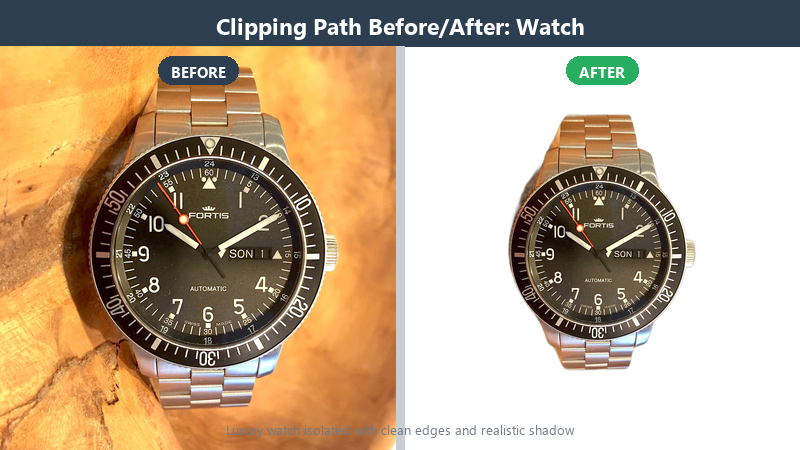
The opposite mistake is cutting into the product — clipping away real edges, rounding off corners, or slicing off thin details like watch hands, lace loops, or the tip of a shoe. This happens when the path is drawn too far inside the subject.
When part of the product is missing, shoppers subconsciously register it as defective. A necklace with a clipped prong, a handbag with a softened corner — these small losses erode confidence.
The fix: Draw the path just outside the actual edge, then feather only if needed for soft materials. Never sacrifice real product detail for a cleaner background.
3. Ignoring Soft Edges and Translucent Materials
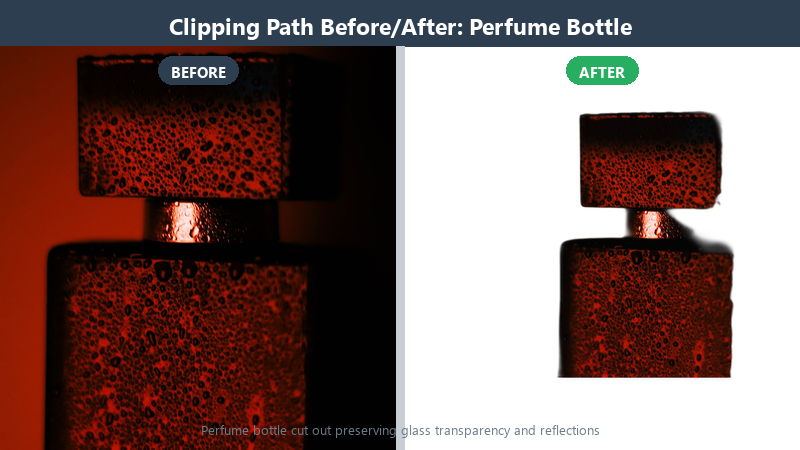
Sheer fabric, smoke, glass, and hair don’t have hard edges. A single hard vector path around these materials looks like a cardboard cutout. This is where most automated background removal tools fail completely, producing plastic-looking results that shoppers instantly distrust.
The fix: For translucent subjects, use channel-based masking combined with clipping paths. Build multiple paths and paint the transitions by hand so light, shadow, and texture survive the cut.
4. Flat, Floating Shadows
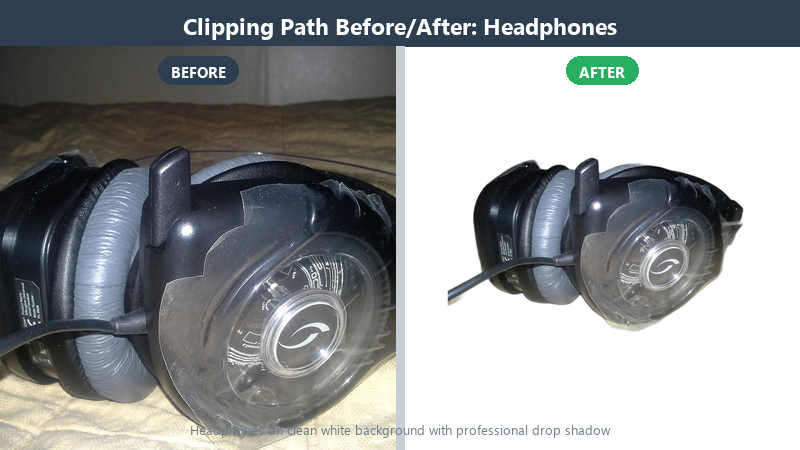
A product cut out and slapped on pure white with no shadow looks like it’s floating in space. Without a shadow, there’s no sense of weight, dimension, or place. Shoppers can’t visualize the item in their own lives.
The fix: Add a realistic drop shadow or reflection shadow that matches the light direction of the original studio shot. The shadow should be soft where it meets the product and gradually fade out — never a hard gray oval.
5. Inconsistent Edges Across a Catalog
If image 1 has a sharp edge and image 900 has a soft, feathery edge, your catalog looks disjointed. Brand consistency is what turns a collection of product photos into a professional store. Automation struggles here because every input varies.
The fix: Create a written image standard — same shadow angle, same white point, same edge softness — and apply it to every image in the batch.
6. Using the Wrong Path Type for the Subject
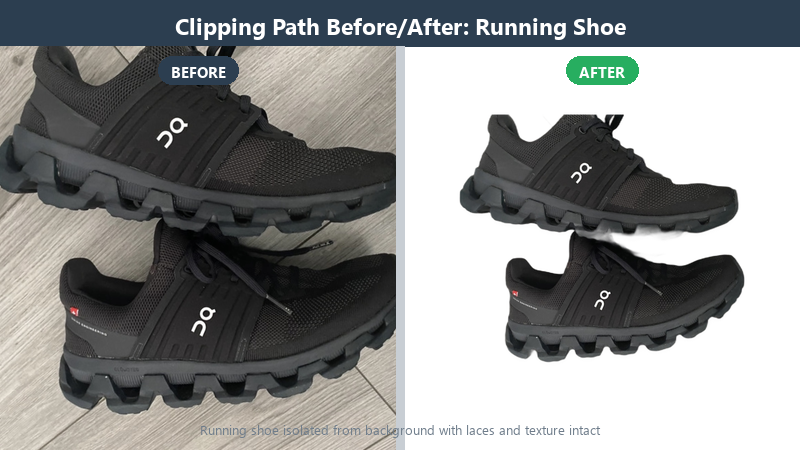
Not every product needs the same approach. A box needs a simple clipping path. A running shoe with mesh, laces, and curved soles needs a complex path. A model with flying hair needs masking, not a single path. Using a simple path for a complex subject produces ragged edges; using a complex path for a simple box wastes time and money.
The fix: Match the technique to the product. Simple objects get simple paths; complex objects get complex paths with manual judgment.
7. Forgetting Color Correction After Clipping
Clipping a product out often changes how its color appears against white. A red that looked rich on gray might look washed out or neon on pure white. Skipping color correction after clipping leaves your product looking off-brand.
The fix: After clipping, adjust white balance, saturation, and contrast so the product color matches the physical item and your brand standard.
8. Low-Resolution Output for Zoom
Shoppers zoom. On Amazon and most marketplaces, the zoom function magnifies your image to 200% or more. A clipping path that looks fine at thumbnail size falls apart under magnification — jagged edges, pixelated halos, soft focus.
The fix: Deliver clipped images at high resolution (at least 1500 px on the long side) and QC at 200% zoom before publishing.
9. Relying Fully on Automation
AI background removal is fast, but it has no brand standard, no understanding of what your product is, and no ability to correct itself. A wrong cut is hard to fix because you can’t edit an algorithm’s guess. A clipping path is editable — every anchor point is a decision that can be revised.
The fix: Use automation for simple, high-volume jobs only. For anything that requires interpretation, brand consistency, or constructed shadows, use a human pen tool artist.
10. Skipping Double Quality Control
One person clips the image. A second person checks it. If you skip the second check, you ship halos, eaten edges, and color drift. One check isn’t quality control — it’s hope.
The fix: Every clipped image should pass two separate checks before delivery. The first catches obvious errors. The second catches what the first missed.
The Bottom Line
Your clipping path isn’t a technical detail. It’s the difference between a product that looks trustworthy and one that looks cheap. Fix these ten mistakes, and your images — and your sales — will follow.
Need clean, hand-drawn clipping paths for your product catalog? Start with two free trial images and compare the edges yourself.

No Comments