

11 Sep Create an Amazing Colorful Heart using Photoshop
In this tutorial I will present how to create an amazing colorful heart using photoshop and we use attractive bokeh effect in a heart shape with nice a blur effect in the background of the illustration and other composition enhancement to bring more attraction and focus on the subject image. So, why not have a try…
Step 1:
Open your photoshop and create a new layer (600×500 px), fill it with black.

Step 2:
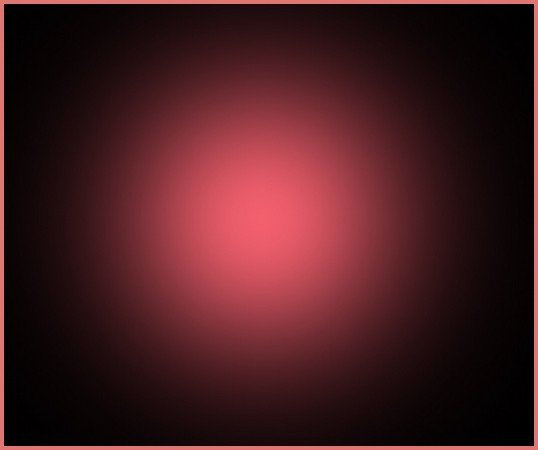
Create a new blank layer, choose soft brush tool, 500px, color f3606e to spot on the middle of the pic:
Step 3:
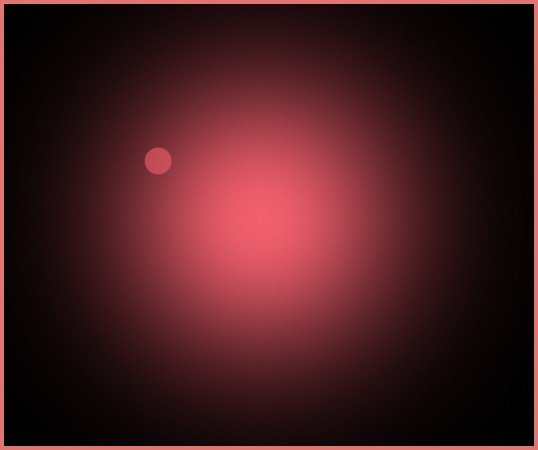
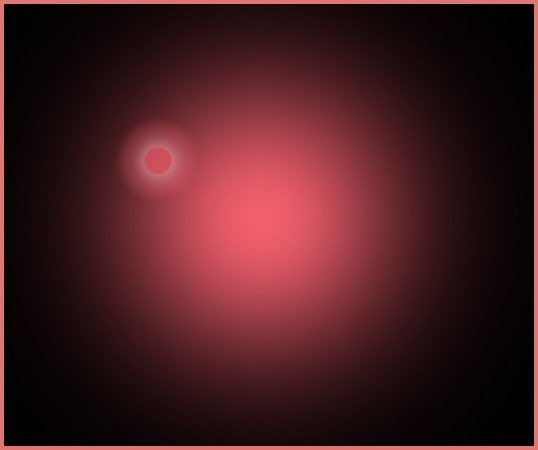
Create a new blank layer again, use hard brush, 30px with color f3606e to draw on the pic and then lower opacity to 60%
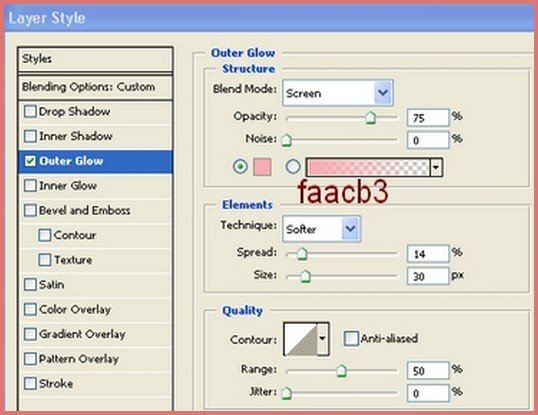
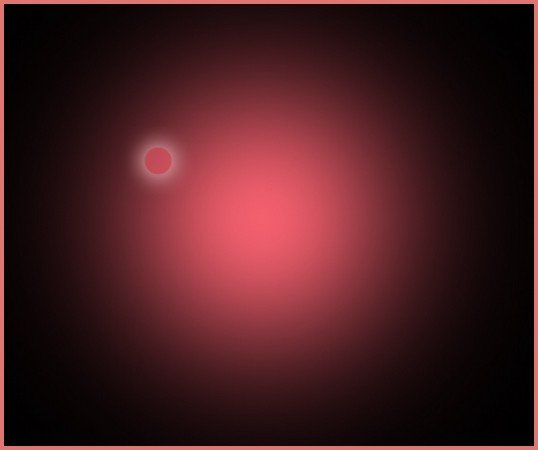
Right click this layer, choose Blending Options – Outer glow:
Step 4:
Create a new blank layer, choose hard brush tool, 85px, color f3606e to spot over the previous brush spot. Lower opacity to 20% and apply Gaussian blur with 4px we have:
Step 5:
Merge two these brush spot layers (in my Layers pallete, it’s layer 2). Duplicate layer 2 then merge them we get layer 2 copy. Duplicate it four times, resize and change the color of some by applying Color overlay from Blending options, set the position like this:
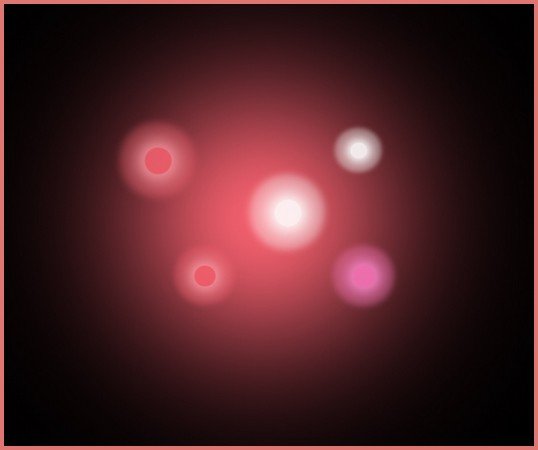
After that, merge all these layers.
Step 6:
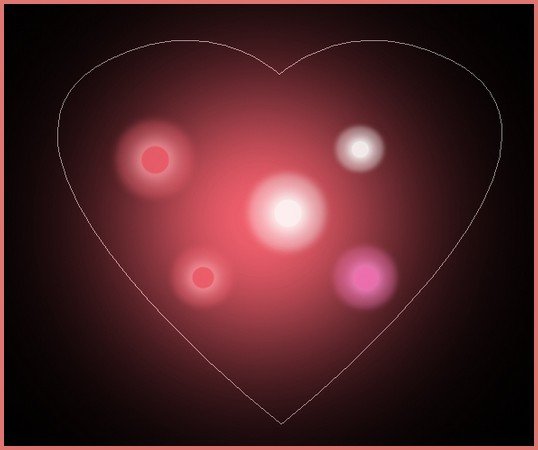
Create a new layer, use custom heart shape tool with the option like the pic below :

Draw on the pic like this:
Step 7:
Create a new blank layer, choose brush tool, hard brush, 30px and press F5 to adjust settings:

[ad#AdBrite]
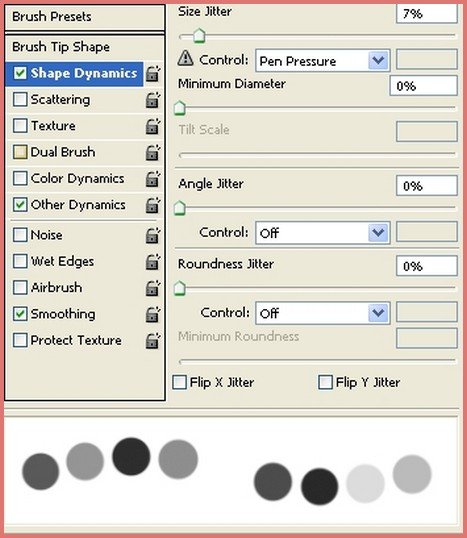
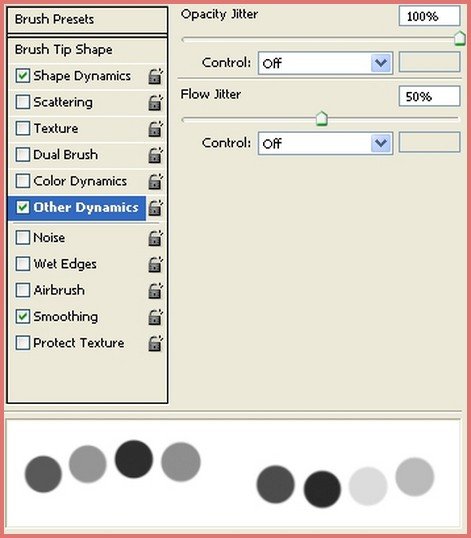
Then choose color f3606e to start tracing the path of heart shape, and don’t let the brush out much of shape:
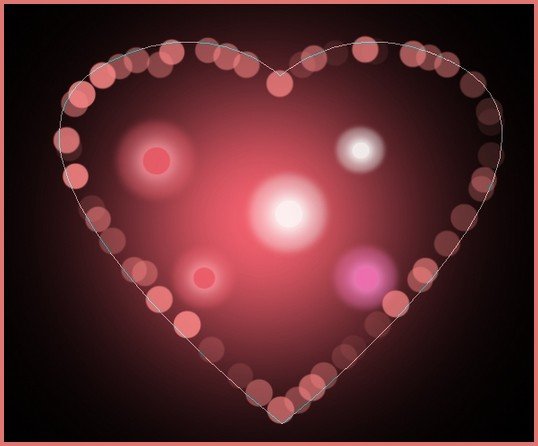
Step 8:
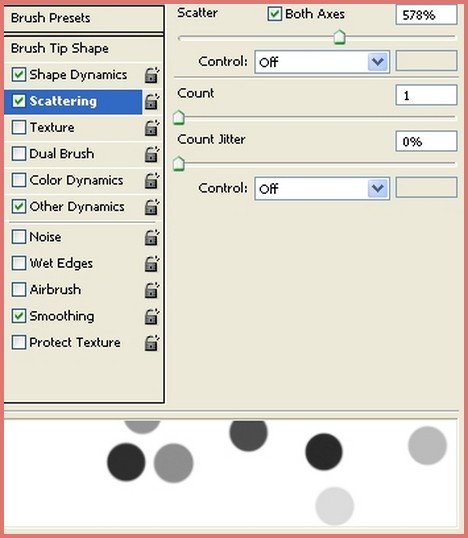
Create a new blank layer, choose brush tool, press F5 and set Scattering (keep all old brush setting in previous step)
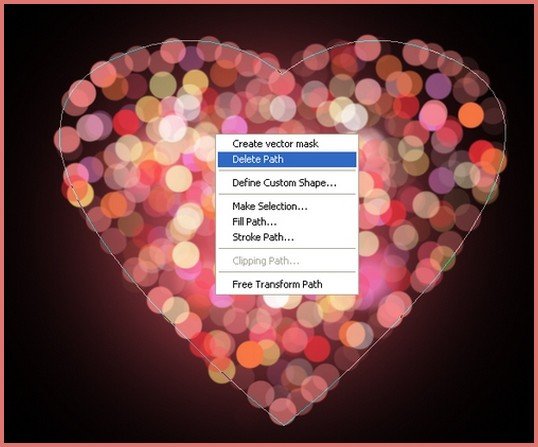
Use brush with different colors to paint within the shape ( don’t let it out of shape), use light color for the center of shape:

Step 9:
Come back to heart shape layer, choose PenTool, then right click this shape, choose Delete path:

Final Result:

Hope you can learn something new from this tutorial.
I feel really glad if you give me feedback through comment below. Soon i am going to show more interesting & innovative tutorials so please keep visit our blog. That’s for now.
Have fun!
For Clipping Path Service, Image Masking Service & Photo Editing Service please contact us.
Thank you… 🙂
Reference: rnel

Sorry, the comment form is closed at this time.