
12 Apr Create A Transparent Web Layout Using Photoshop
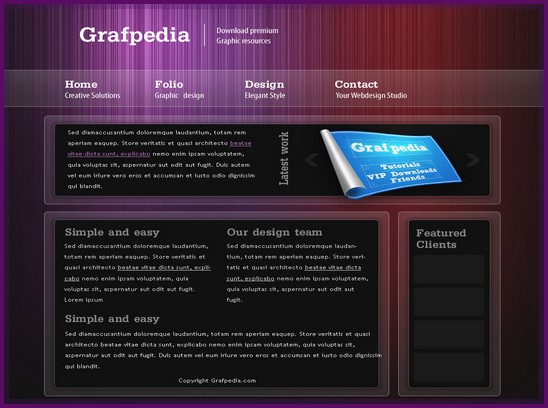
Today i would like to share how to create a transparent web layout using Photoshop. In this tutorial we will show you how easy to create enormous web layouts with a stylish transparent buttons and simple transform background into a fantastic effect. We think it may help you to create your own blog more stylish. So, why not have a try….
At first create a new document with the following size: 960 x 900 pixels. I will set my Foreground color to #141414, and then with Paint Bucket Tool i will press one time over my document.
I will grab Brush Tool, and with a Smooth Round brush i will create 3 points over my layout with the following colors:
#a864a8
#ed1c24
#662d91

Please note the brush size should be 600 pixels.

I will go to Filter > Noise > Add noise.

I will use the following settings.

Your layout will look like this one.

I will go to Filter > Blur > Motion Blur.

In the Motion blur window i will set the angle to 90 degrees, and distance to 998.

This is a very easy way to create a nice background for your website. This is my background. In the following image i will show you only a part of my entire screen.

I will create a new layer (press CTRL+SHIFT+ALT+N),

I will select one more time Brush Tool, and then i will set my foreground color to white.

I will use one more time a big smooth brush.

Then with this brush i will create another point over my layout.

Then i will change the blending mode for this layer to Overlay.

Now i will start to create another shape. I will create a navigation bar. For this i will need the Rectangle Tool
With this tool i will create a simple shape at the top.

I will select Rounded Rectangle Tool, and i will set the radius to 6 pixels.

I will turn on the Grid, because i want to align better my layout in the next steps.

I hope you still have the Rounded Rectangle Tool selected. Please create 3 shapes like in the following image.

Now i will add for all layers some layer styles.


Click on the following image to see my result better.

I will create another shape with the same tool: Rounded Rectangle Tool.

For all these shapes i will add the following layer styles.


This is my result

Now it is time to add some text. As usual with Horizontal Type Tool i will write some dummy text.

Then i will add a image on top of the layout. I will use the 3D Blueprint image. You can see the tutorial here.

In the same area i will add two arrows with Custom Shape Tool

Final Result:

Hope you can learn something new from this tutorial.
I feel really glad if you give me feedback through comment below. Soon i am going to show more interesting & innovative tutorials so please keep visit our blog. That’s for now.
Have fun!
Reference: grafpedia.com

David Miller
Posted at 10:14h, 14 AprilYes, I did learn something new. Thanks for the tutorial. As I also design email campaigns I am sure to use this in some of my work.
David
Posted at 07:11h, 30 AprilIts Really good! thank you so much for sharing with us!
Saurav
Posted at 07:13h, 02 MayThanx for this tutorial. It is very good and easy to understand. A non Photoshoper can also used it…